26245 APPLIED COMPUTATIONAL CHEMISTRY: MOLECULAR DYNAMICS
This part of the course requires simulations run on DTU’s central computing facilities (HPC). The exercises are performed in Jupyter notebooks running on the HPC servers, but accessed through your browser.
This requires a bit of setup.
The computer system
The DTU computer system consists of a login node (named login1.gbar.dtu.dk) and a number of compute nodes. You will be running a JupyterLab server on an interactive compute node; this server will run the Python jobs and will allow the browser on your laptop to see the output.
Setting up the first time (Windows)
You will need the program MobaXterm which will help you with the following tasks
Logging in to the DTU computer system.
Displaying the ASE graphical user interface on your laptop.
Forward a connection to the Jupyter server (SSH tunnel).
Accessing files on the remote server from your laptop.
Installing MobaXterm
You download the program from the website https://mobaxterm.mobatek.net. Choose Download, select then “Free Home Edition”, then choose “Portable Edition”. Download the zipped file, unzip to a destination of your choice, and double-click the .exe-file.
Connecting the first time
Start MobaXterm. You will see a window with a row of buttons at the
top. Click on the Session button, you will now see a window as
shown below.
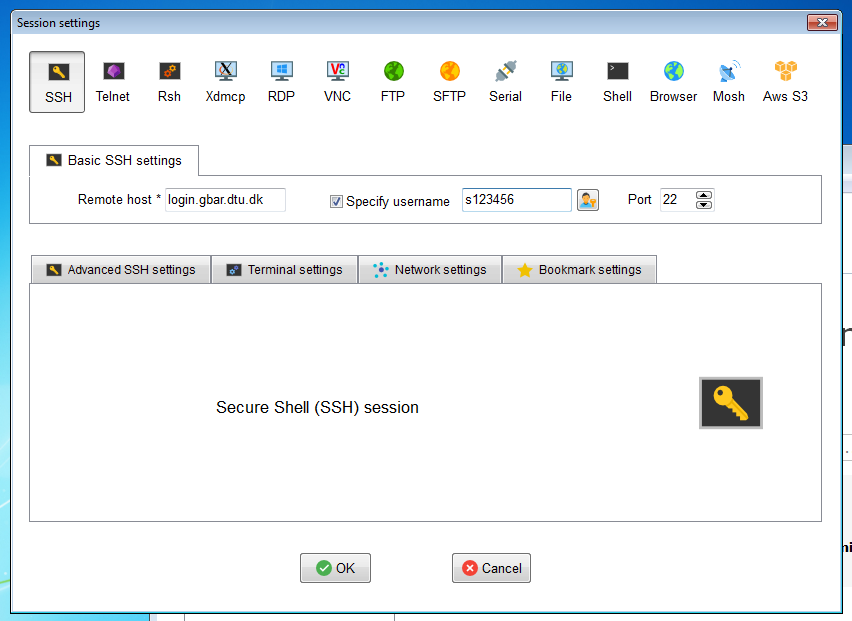
Click the leftmost tab SSH.
In the tab Basic SSH settings you should choose Remote host to be
login1.gbar.dtu.dk. The user name is your DTU user name. The port number
must remain 22. Click OK and give your DTU password in the text
window when prompted. NOTE Nothing is written when you type the
password, not even stars.
We do not recommend allowing MobaXterm to remember your password!
You now have a command-line window on the DTU login-computer, as shown below.
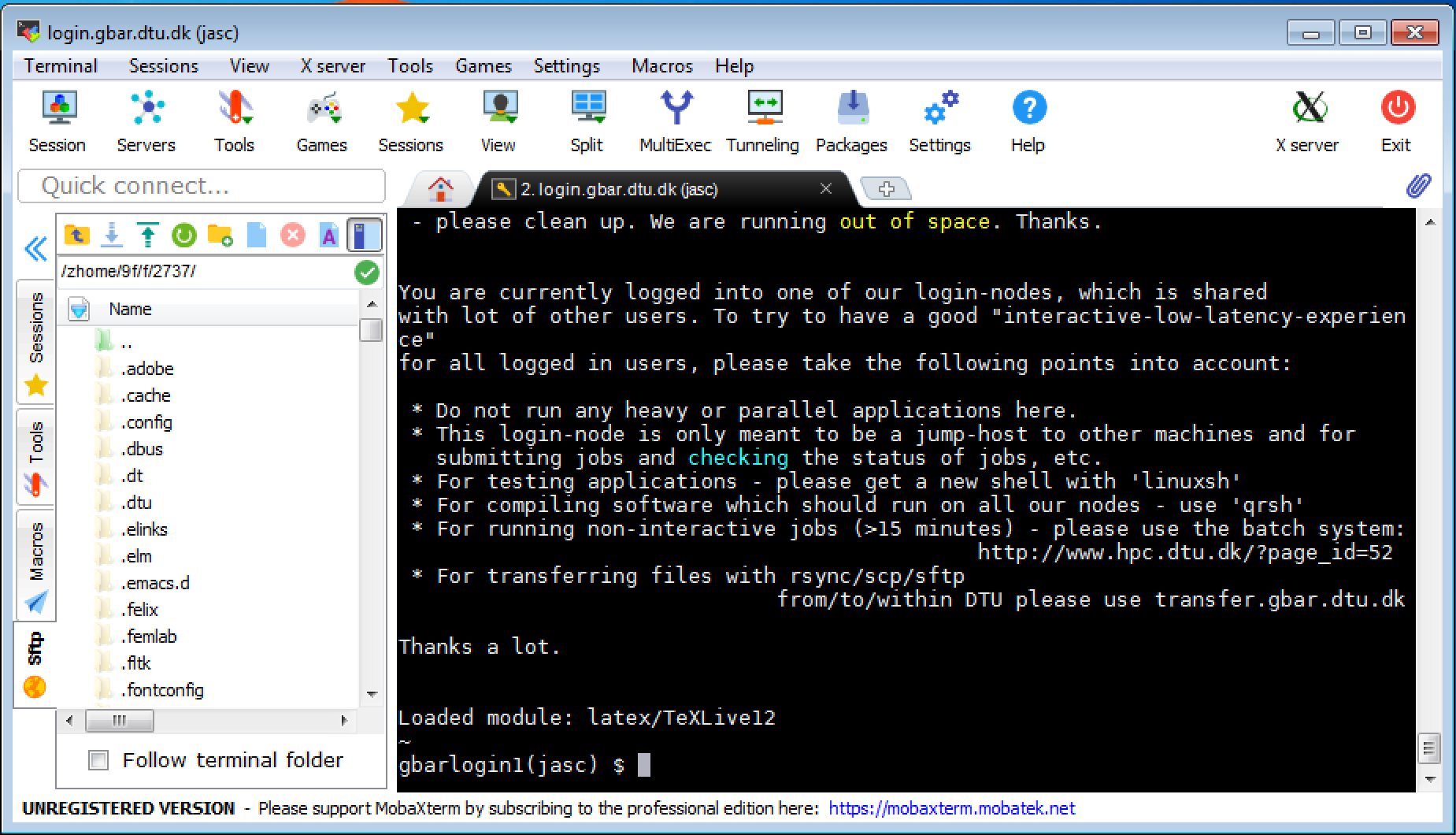
The two last lines are the command prompt. The first line indicates
your current working directory, here your home folder symbolized by
the ~ (tilde) character. The lower line gives the name of the
computer (gbarlogin) and the user name (jasc in the figure)
followed by a dollar sign.
This computer (gbarlogin) may not be used for calculations, as it
would be overloaded. You therefore need to log in to the least loaded
interactive computer by writing the command:
linuxsh -X
(the last X is a capital X, you get no error message if you type it wrong, but the ASE graphical user interface will not work).
Get access to the software
To give access to the software you need for this course, please run the command:
source ~asod/MDCOURSE/setup
Note the tilde in the beginning of the second word.
The script will install all the necessary software on your account in a conda environment named md26245.
If you already have conda installed, it will use your existing installation.
If not, it will install Miniforge first.
Execution of this command can take a while, during this time you can proceed with the paper exercises (Exercise 1).
When the command finishes, the script will ask you to set a Jupyter password. This will be used to access the notebooks from the browser on your laptop. It is a bad idea to type your DTU password into untrusted programs, so you should probably choose a different password - this is particularly important if you are a DTU student/employee, the security of your DTU password is critical!
Starting and accessing JupyterLab (Windows)
To run JupyterLab on the DTU HPC while displaying its output in your browser requires three steps.
Starting the notebook on an interactive compute node.
Make a connection to the relevant compute node.
Connecting your browser to the JupyterLab process.
Logging into the HPC (Day2: Start from here)
If you just completed the previous steps (Day 1), skip to the next section, Starting JupyterLab.
If you are not already logged into the HPC, do so by starting
MobaXterm. There should be a session available from the welcome
screen of MobaXterm named login1.gbar.dtu.dk or similar, created
when you logged in the first time. Click on it to log in again. Note
that when you are asked for a password, you should use your DTU
password, not the Jupyter password you just created!
Once you are logged in on the front-end, get a session on an interactive compute node by typing the command:
linuxsh -X
Starting JupyterLab
Change to the folder where you keep your notebooks (most likely MD26245) and start the JupyterLab server:
cd MD26245
mdnotebook
The command mdnotebook checks that you
are on a compute server. Then it starts JupyterLab from the md26245
conda environment.
If you prefer to start the server manually, first activate the course environment and then start JupyterLab:
conda activate md26245
jupyter lab --no-browser --port=40000 --ip=$HOSTNAME
The JupyterLab server replies by printing a few status lines, as seen here
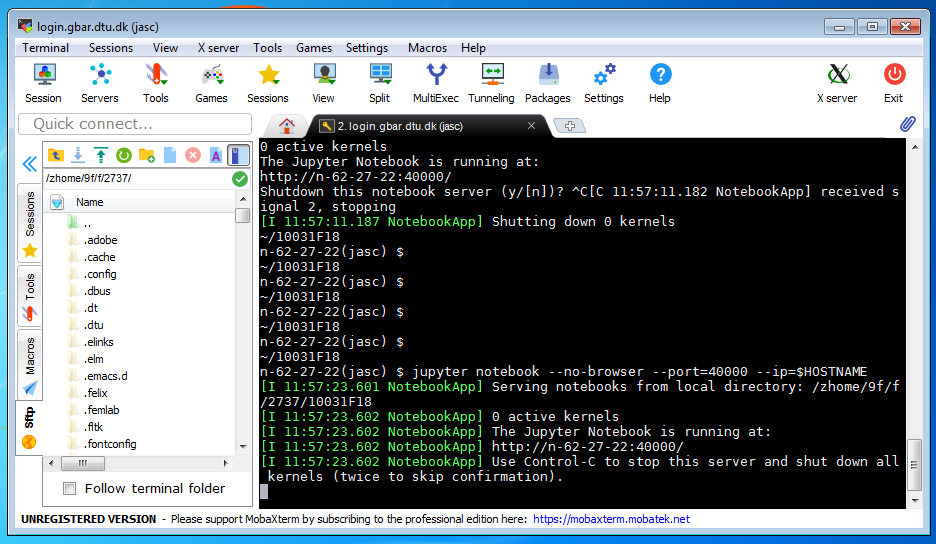
The important line is the second from the bottom, it shows on which
computer and port number the notebook is running (here n-62-27-22
and 40000, respectively).
Create an SSH Tunnel to the notebook
For Windows users, follow the instructions below. For Mac/Linux users, see Tunneling on Linux/Mac.
Use MobaXterm to create a so-called SSH Tunnel from your computer (which cannot connect directly to the compute node) to the login server (which can).
In the top of your MobaXterm login window there is a row of buttons.
One of them is named Tunneling, press that button. You now get a
new window called MobaSSHTunnel, in the lower left corner of the new
window you find a button called New SSH Tunnel, press it. A new
window opens, as shown here:
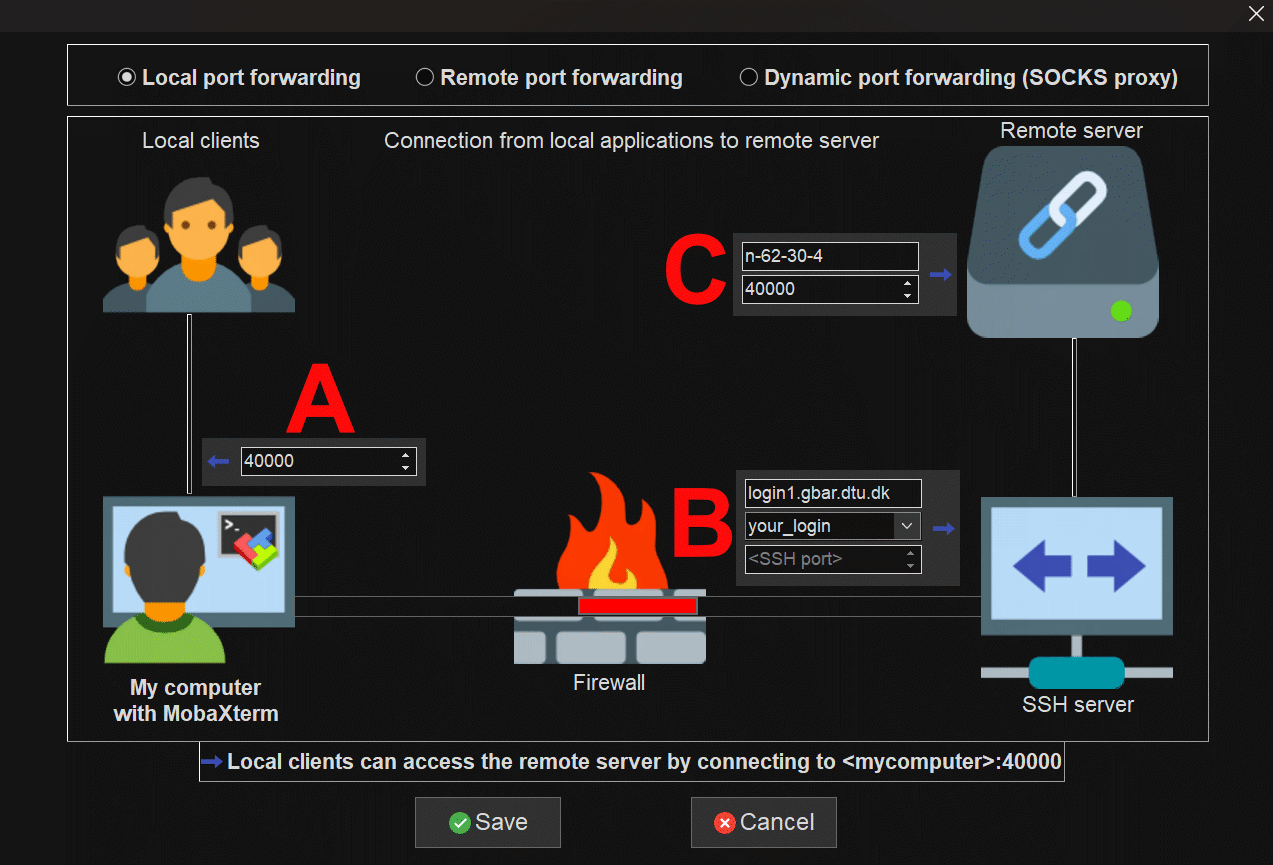
In the field marked A on the figure you should write the
port number 40000 (that will be the local port number on your laptop).
In the field marked B you should write the name of the
“stepping-stone” computer, in this case use login1.gbar.dtu.dk.
You also need to
enter your user name (your_login in the figure).
In the field marked C you write the name of the compute node, and the
port number of the JupyterLab server. The machine name will have the
form n-XX-YY-XX (where XX etc are numbers - if it is gbarlogin
you forgot to run the linuxsh command mentioned at the top of this
page!) The port number is typically 40000 or a number slightly above
or below.
Now press the button Save. You will now see a window like the one
shown here:
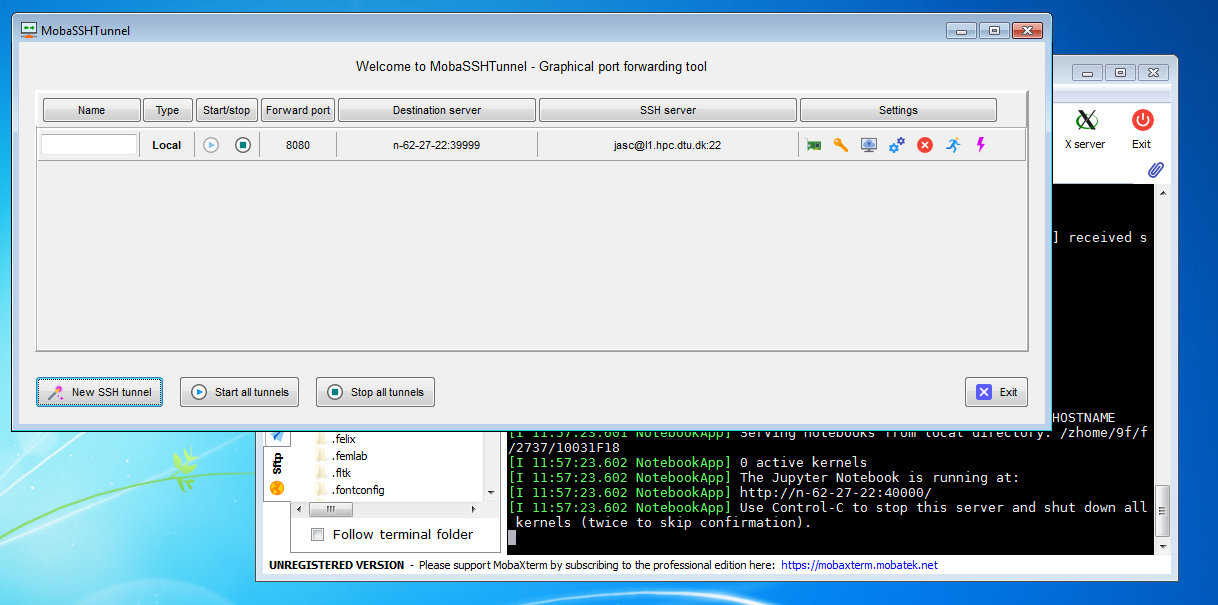
Check that the machine name and port number are correct, then start the tunnel by pressing the small “play” button (with a right-pointing triangle). If you are asked for a password, it is the DTU password, not the Jupyter password.
You might see a windows firewall pop-up. Just click cancel, it should work anyway.
IMPORTANT: When you log out from the HPC and log in again, you will get a new compute node. You will therefore need to start a new JupyterLab server, and create a new SSH tunnel as described above. Then you have to be careful and start the right one.
Starting a browser
Start a browser (Chrome and Firefox are known to work well) and write in the address bar:
http://localhost:40000
Your browser is now asking for your Jupyter password (the one you created when setting up your account). You are now ready to open the notebook ‘MD26245.ipynb’ , and run the exercises.
Logging out
When you are done for the day, please
Save all notebooks, then select
Close and Halton the file menu.Stop the SSH tunnel.
Stop the JupyterLab server by pressing Control-C twice in the window where it is running.
Log out of the HPC by typing
exittwice in the window(s).
Tunneling on Linux/Mac
In a terminal:
ssh -N -L 40000:<COMPUTE_NODE>:<NOTEBOOK_PORT> <DTU_USERNAME>@login1.gbar.dtu.dk